Members and roles
Invite people to the whole organisation or to one project, and choose what each of them can do. Five roles, from Owner to Moderator.
Bring in the people who work with your content and give each the access their job needs: a developer who manages keys and templates in one project, a moderator who works the review queue, an admin who runs everything except billing.
A person is a member of the whole organisation or of single projects. The role they hold decides what the dashboard lets them do.
Roles
| Role | Reaches | In short |
|---|---|---|
| Owner | Every project | Everything, including billing. |
| Admin | Every project | Every project and every setting, no billing. |
| Project admin | One project | Everything in one project, including its settings. |
| Developer | One project | API keys, templates, policies, webhooks and actions. |
| Moderator | One project | Works the review queue and manages authors. |
Owner and Admin are organisation roles. They apply to every project, including ones created later. The other three are project roles: a person can hold one in several projects, and a different one in each. Someone who holds both kinds gets the sum of the two.
What each role can do
| Owner | Admin | Project admin | Developer | Moderator | |
|---|---|---|---|---|---|
| Billing: the plan, extra checks, invoices | Yes | No | No | No | No |
| Rename the organisation, create projects | Yes | Yes | No | No | No |
| Invite people, change roles, remove members | Yes | Yes | No | No | No |
| Read the audit log | Yes | Yes | No | No | No |
| Change project settings, archive the project | Yes | Yes | Yes | No | No |
| Assign queue items, set their priority, decide in bulk | Yes | Yes | Yes | No | No |
| Create and revoke API keys | Yes | Yes | Yes | Yes | No |
| Edit templates, guidelines, wordlists, webhooks and actions | Yes | Yes | Yes | Yes | No |
| Run the template test console, re-moderate | Yes | Yes | Yes | Yes | No |
| Decide queue items, add notes, reveal an original image | Yes | Yes | Yes | Yes | Yes |
| Run actions, block, suspend and enable authors | Yes | Yes | Yes | Yes | Yes |
| Read the live console, moderations and usage | Yes | Yes | Yes | Yes | Yes |
Three pages of Settings open only for people who hold an organisation role: Organisation, Members and Audit log. A Project admin, a Developer or a Moderator who opens one of them sees it keep loading.
The rail and the Settings list show every page to every role. Inside a page, the actions a role does not have are hidden, disabled or refused.
Invite someone
Open the invitation form
Open Settings, Members and choose Invite member.
Choose the access and the role
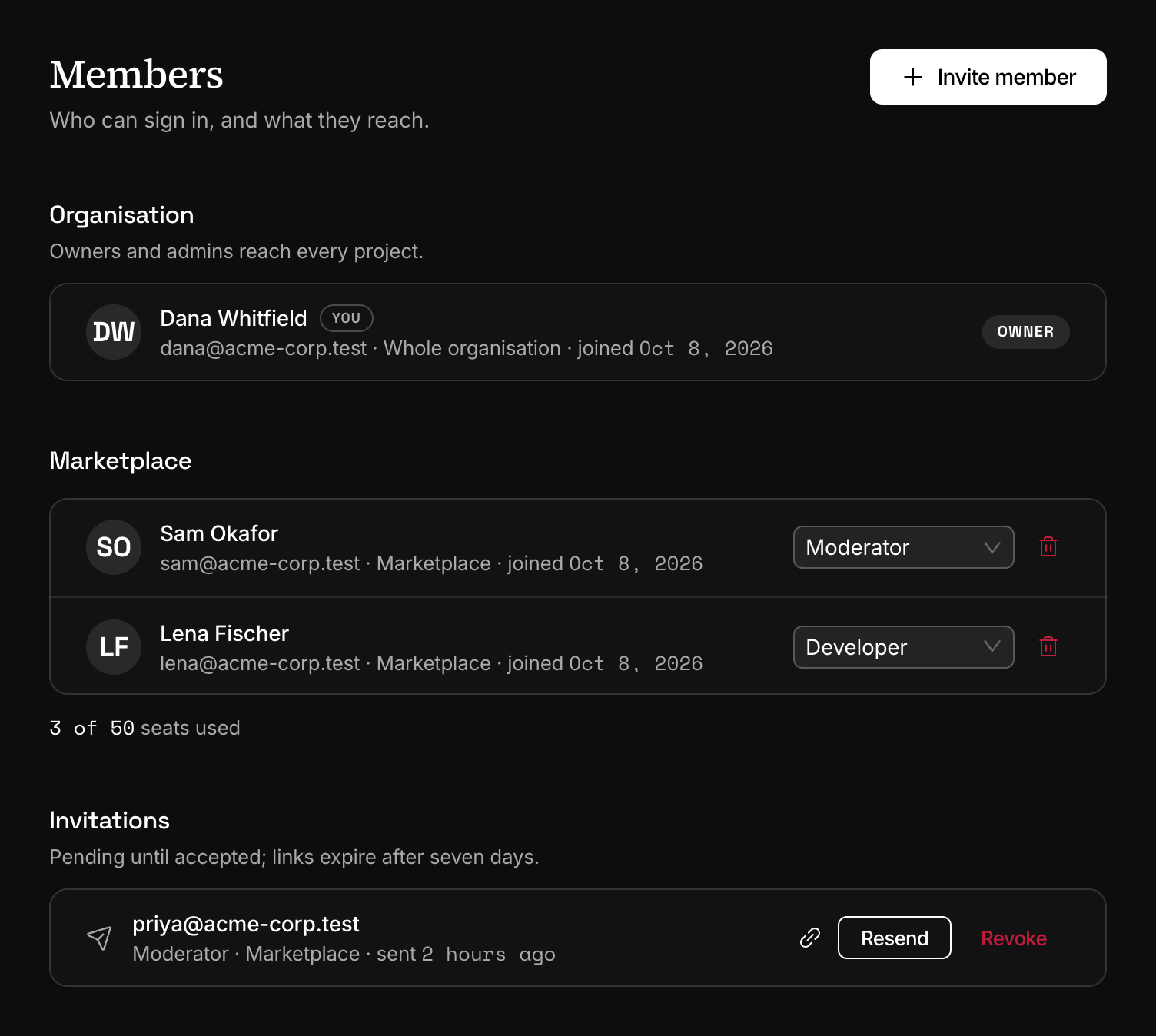
Enter the person's work email. Under Access, pick One project and the project, or Whole organisation. Then pick the role: the form prints what the role allows under the menu.
A person can be invited straight in as an Owner.
Send the invitation
Choose Send invitation. The person gets an email with an Accept invitation button, and the invitation appears under Invitations until it is accepted.
An invitation works for 14 days. Resend sends the same link again and does not move that date. Revoke stops the link at once.
If the email cannot be delivered, the invitation still exists. Copy its link from the list and send it yourself.
What the invited person sees
The link opens a page titled "Join" with your organisation's name, the role and, for a project invitation, the project.
- Someone new types a name and a password, ticks the two boxes that say they agree to the Terms of Service and have read the Privacy Policy, and is in. No verification code is asked for, because the invitation email already proved the address.
- Someone with an Infrared account enters their password and joins. They also join on their own the next time they sign in, without opening the link.
- Someone signed in with another address is told which address the invitation was sent to and offered to switch account. An invitation works only for the address it was sent to.
A person who joins from an invitation gets no organisation of their own.
The members limit
| Limit | Free | Starter | Growth | Business |
|---|---|---|---|---|
| Members | 1 | 5 | 15 | 50 |
The limit counts memberships and pending invitations across the organisation: every Owner and Admin, every project membership and every invitation not yet accepted. One person in two projects counts twice. On a plan whose limit is one, that one is the Owner, and nobody can be invited.
At the limit, Send invitation is refused with a Plan limit reached notice. The counter under the members list counts people, not memberships, and leaves pending invitations out, so an invitation can be refused while the counter still shows room.
Change a role or remove someone
Use the role menu on a member's row, or the remove button beside it. Your own row has neither.
- An organisation member switches between Owner and Admin, a project member between Project admin, Developer and Moderator. To move someone from one kind to the other, remove them and invite them again.
- Removing an organisation member ends their access to every project at once. Removing a project member ends it for that project only.
- Queue items assigned to a removed member stay assigned to them. Reassign those from the review queue.
- An organisation always keeps one Owner. The last one cannot be demoted or removed.
- An Admin can change any other member's role, and that includes making someone an Owner.
Every invitation, role change and removal is written to the audit log.
Next
- Organisations and projectsAn organisation holds the plan and the people. A project holds what a request touches: templates, keys, the review queue and its own settings.
- API keysA key signs every request and decides which project it lands in. Create one for each place that calls Infrared, with only the scopes it needs.
- Review queueContent your rules send to review waits in the queue until a person, or your own code, allows it, rejects it or runs another action on it.
- Audit logA record of who changed what in your organisation: templates, keys, members, queue decisions and billing. Rows are kept for 365 days.
Something missing or unclear on this page? Write to support@useinfrared.com.